
Download to live in five steps.
You install the app, calibrate your face once, pick an avatar, and point OBS at a window. About five minutes. Nothing in that chain needs the internet.
- In
Your webcam
- On your PC
Face tracking
- On your PC
Avatar window
- Capture
OBS / Streamlabs
- Out
Your stream
Every frame is read and discarded on your machine. The only things that ever touch the network are the update feed, the avatar catalogue, and your purchases.
- You need
Windows 10 or 11
- You need
Any webcam Windows already recognises
- Optional
OBS or Streamlabs, if you are streaming
Install and open the app
Run the installer and open GetGuise. There is no account step, no rigging, and no plugin to add to OBS. The app opens on the avatar you last used, with a few bundled ones ready to go.
Takes about a minute.
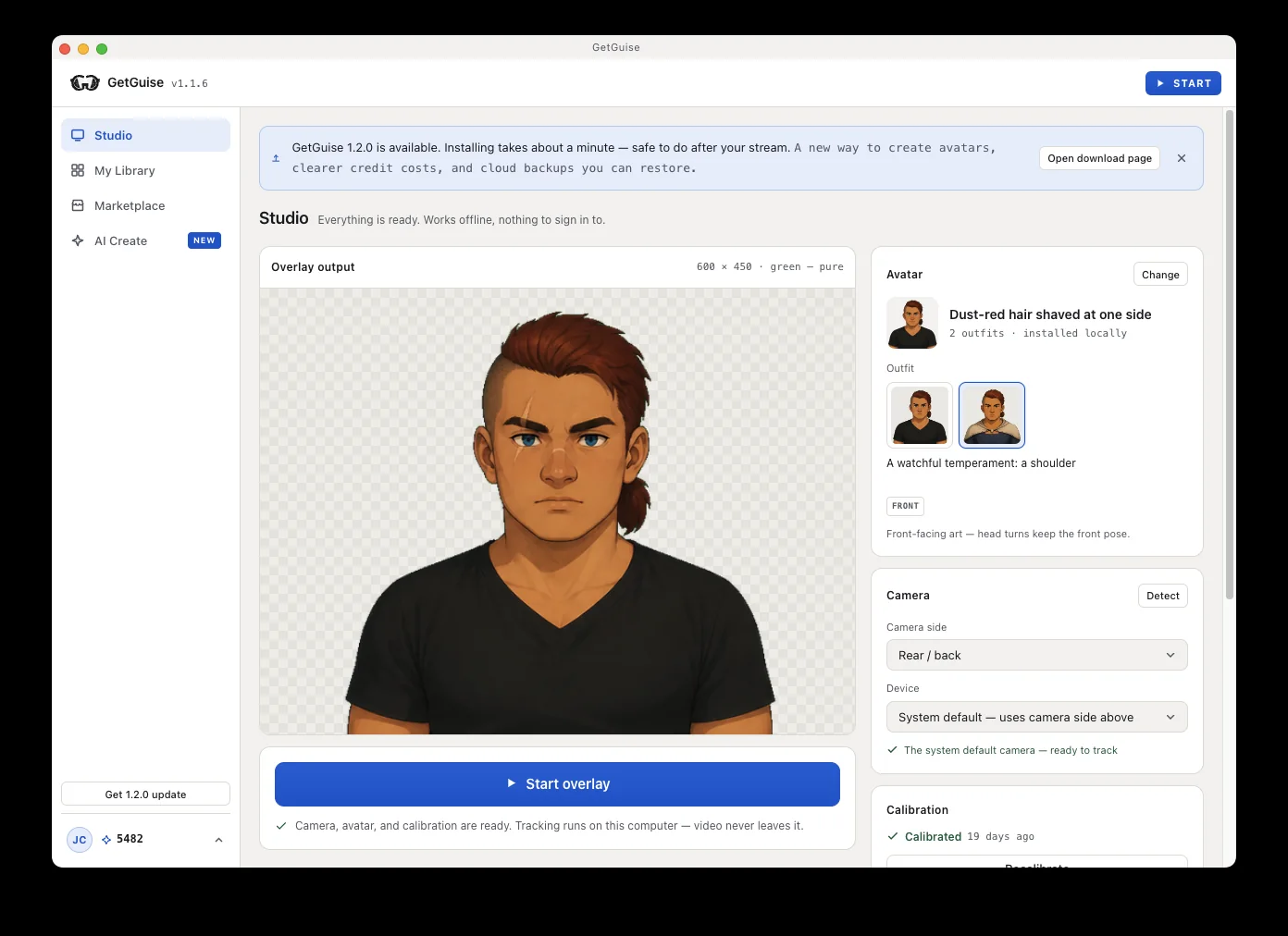
Calibrate your face once
Calibration measures your face — neutral, smile, open mouth, about twenty seconds. You do it once. The result applies to every avatar you ever install, because it measures you rather than the character.
- Then, every frame
Camera in
The app reads your webcam through a runtime bundled inside it.
- Then, every frame
Tracked locally
Every frame is read and discarded on your PC. None of it is uploaded.
- Then, every frame
Avatar out
Your expression drives the avatar, rendered live into its own window.
Pick an avatar
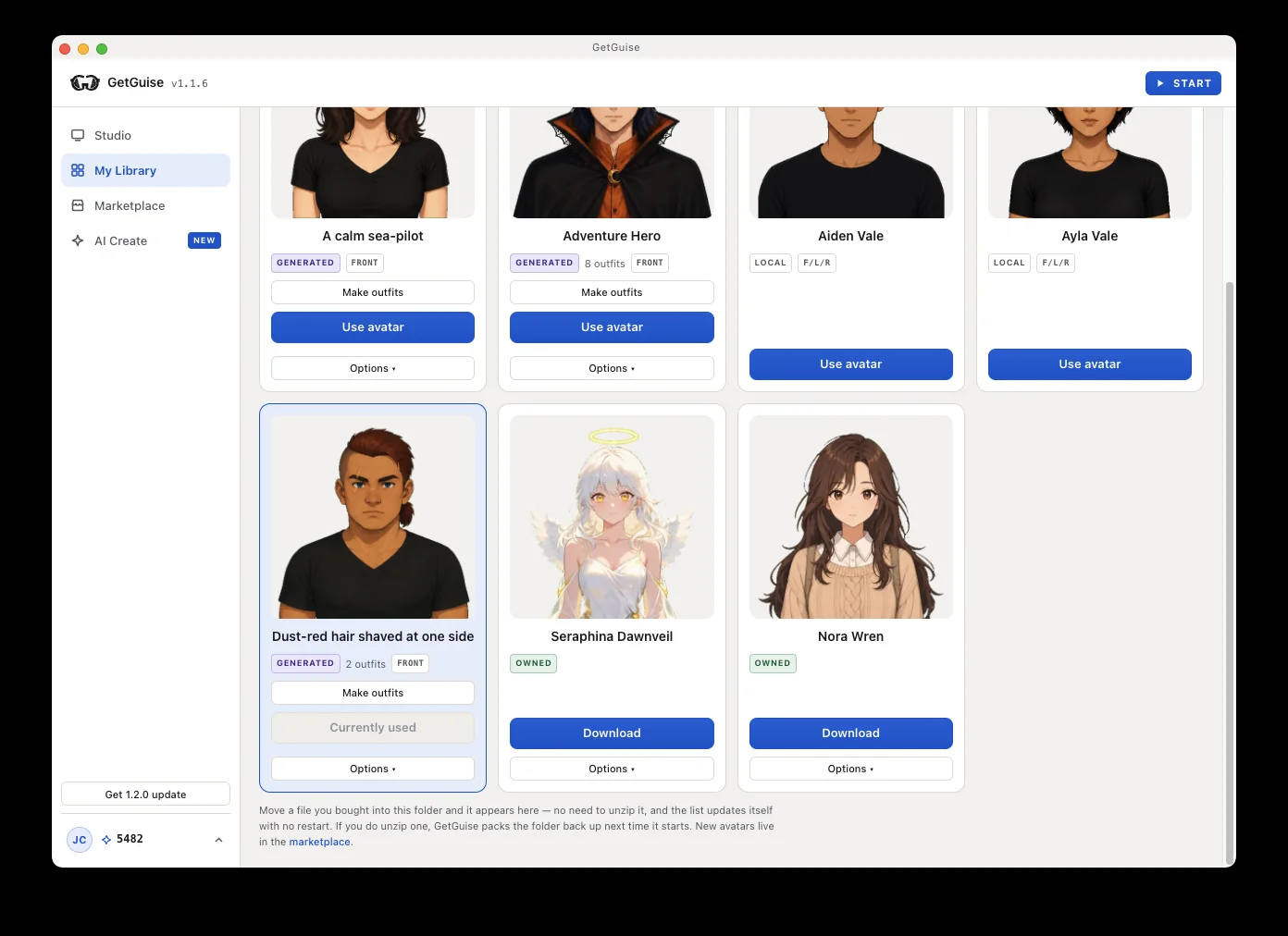
A few avatars ship with the app. Browse the in-app library for more, or describe a character in AI Create and generate your own. Installing one is a copy into a folder you own — no restart, no sign-in.
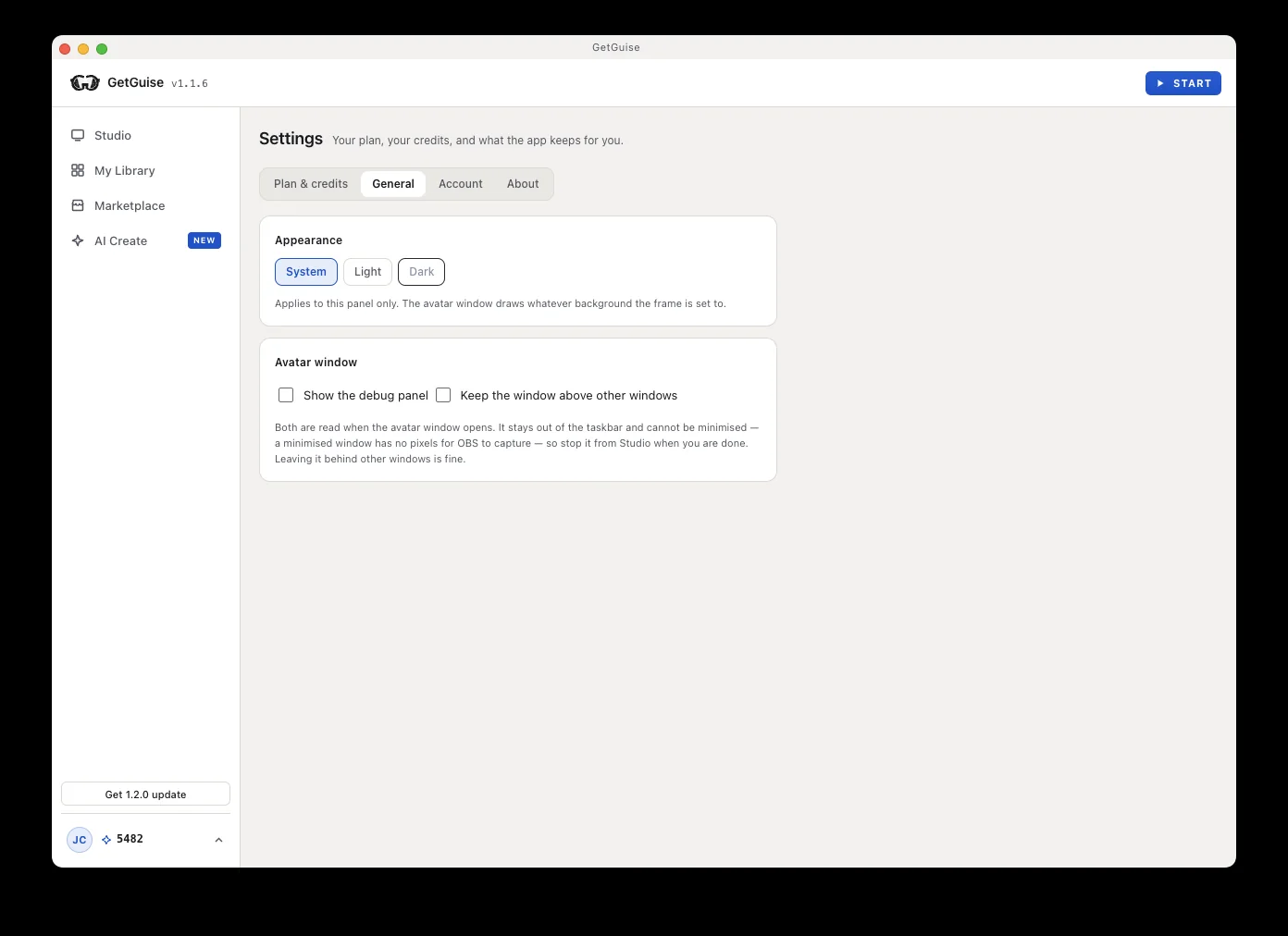
Float the avatar window on top
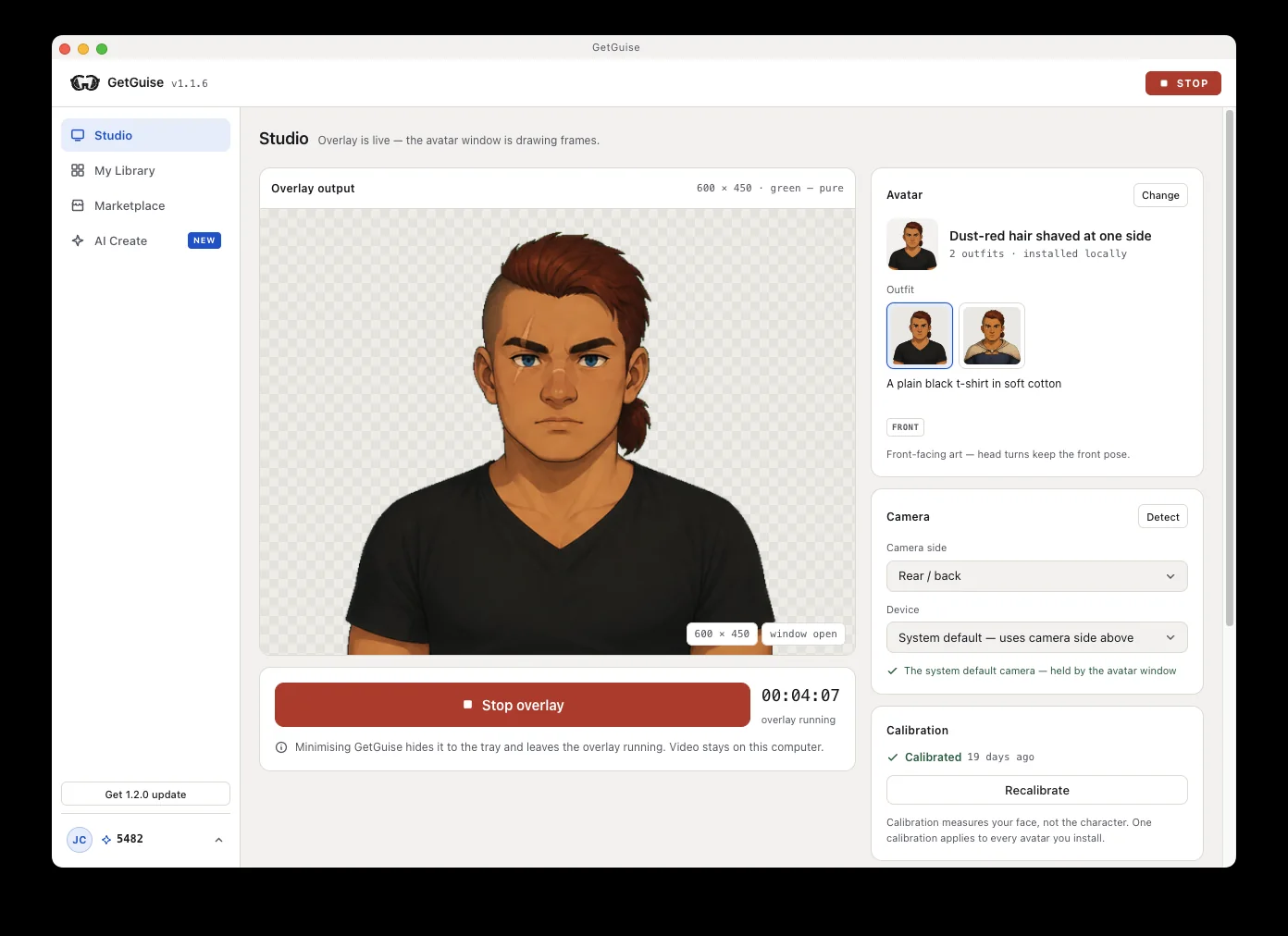
Turn on always-on-top in Settings. The rendered avatar gets a real window with a transparent background that floats above everything else.
This is what stops a plain Window Capture going blank the moment a browser covers it.
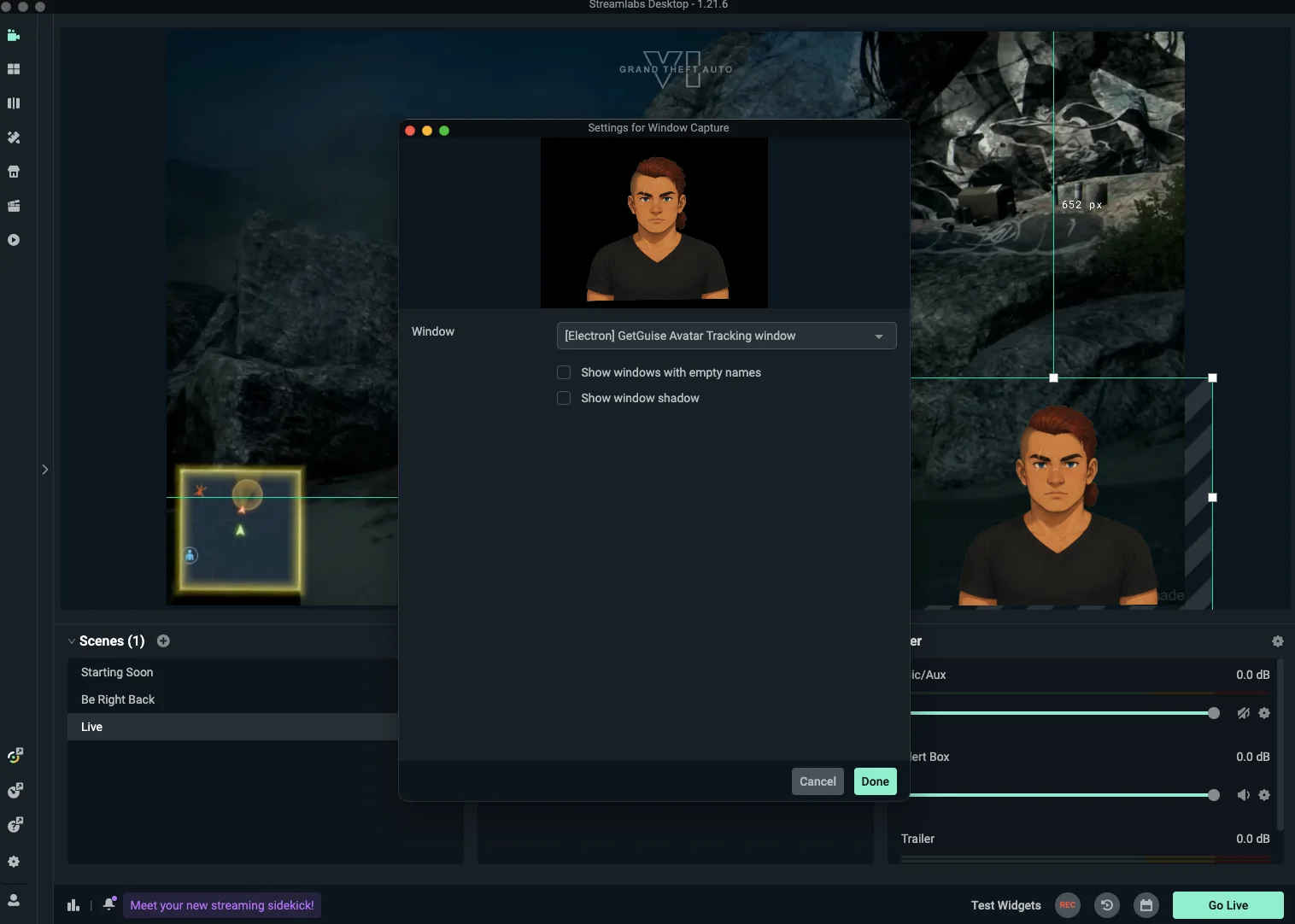
Capture it in OBS or Streamlabs
- Step 1
Add a Window Capture source
In your scene, add the source and pick the GuiseApp avatar window — or add a Browser Source with the local engine URL instead.
- Step 2
Crop and place it
Trim the window chrome, then drag the avatar wherever it belongs in your layout.
- Step 3
Leave it running
Because the window stays on top, the capture keeps showing your face all stream.
Streaming with somebody else, each of you as your own avatar? Stream together with a collaborator covers getting their window into this same scene.
From here you just stream.
The overlay keeps tracking while you play, browse, or read chat. Swap avatars or outfits whenever you like — calibration carries over.
What needs an account
- Signed out
Installing, face tracking, calibration, the overlay window, OBS capture, the bundled avatars, and running with no internet connection at all.
- Signed in
Downloading avatars from the in-app library, and using ones you've bought. Your account unlocks purchases. It never gates your face, your calibration, or your stream.
It does go online. Quietly.
On launch it checks the update feed, the catalogue and your entitlements. Every one of those can fail without you noticing, by design.
Offline never costs you an avatar
An entitlement it can't refresh still lists everything it listed before. Being unable to ask is not evidence of not owning.
Your own art is never checked
Art you made, were given, or migrated in loads every time. Updates notify you; they never install themselves mid-stream.