
Stream together, each as your own avatar.
Two people, two avatars, one stream, and only one of you running OBS. It takes about ten minutes to set up, needs no plugin on either machine, and the guest does not install anything at all.
Nothing here is specific to GetGuise. The technique works because an avatar overlay is an ordinary window, so any app that renders to one — ours or anybody else's — travels the same way. Both of you can be using different software and this still works.
Voice is not part of this. Keep talking to each other on Discord the way you already do; VDO.Ninja is carrying the picture only.
Two machines, two jobs
Almost everything that goes wrong here is somebody doing the right step on the wrong computer. Every instruction below says whose machine it belongs to. Settle which of you is which before you start.
- Role one
The host
Runs the stream. OBS or Streamlabs is on this machine, and so is the scene everything ends up in. Their own avatar is captured the usual way.
- Role two
The guest
Runs an avatar app on their own machine and nothing else. No OBS, no streaming software, no account anywhere. They send a link and that is their whole involvement.
The guest needs no account, no streaming software and no copy of the host's app. They need an avatar on screen and a browser.
On the guest's machine
Do this first — the host needs the link that comes out of step four before they can do anything.
- 01
Start your avatar and set the background to green
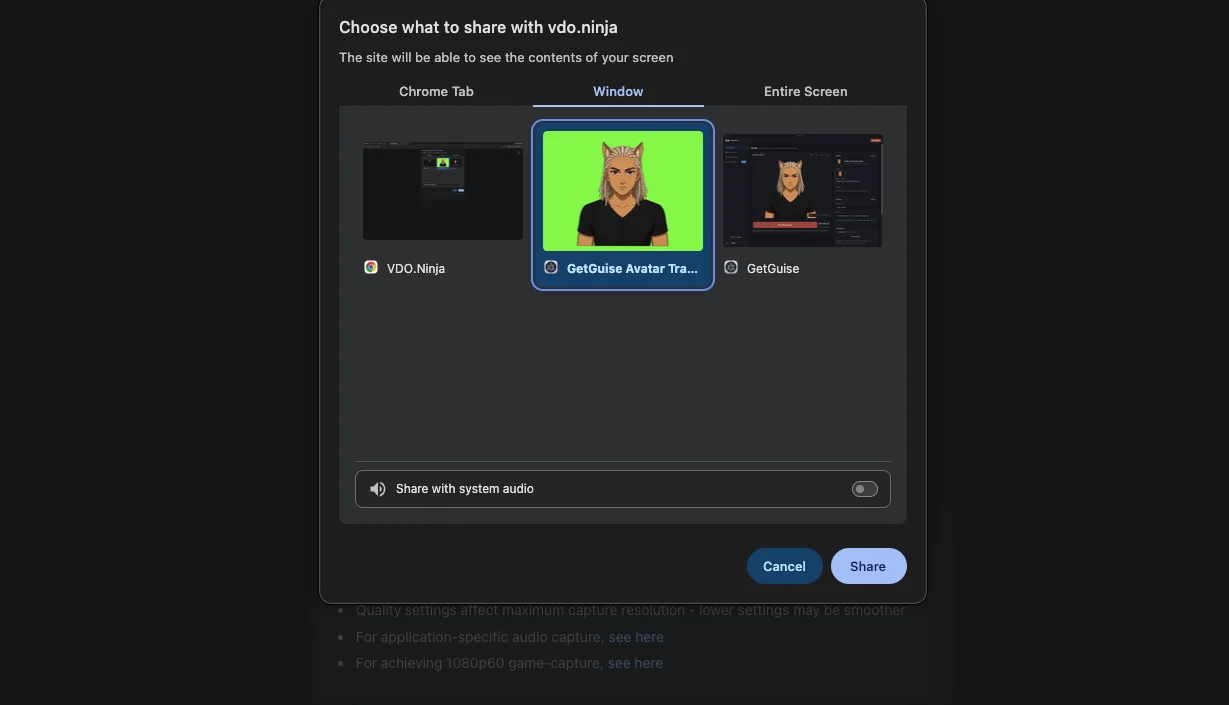
Open your avatar app and start the overlay, so the window is on screen. Set its background to pure green rather than transparent — this is the step the whole workflow depends on, and the section below explains why. In GetGuise the window is listed as "GetGuise Avatar Tracking".
- 02
Open vdo.ninja and choose Remote Screenshare into OBS
Go to vdo.ninja in a browser. Pick the option for sharing a screen into somebody else's OBS. You are not installing anything and you are not signing in.
- 03
Share the avatar window, not the screen
When the browser asks what to share, choose the specific window — "GetGuise Avatar Tracking" or whatever your app calls its overlay. Sharing the whole screen sends your desktop to the stream, which is a bad afternoon.
- 04
Send the host the view link
VDO.Ninja gives you a link that looks like https://vdo.ninja/?view=XXXXXXX. Send it to the host. That is the last thing you have to do — leave the window open and the browser tab running for the rest of the stream.
On the host's machine
- 01
Capture your own avatar as normal
Nothing changes about your own setup. Start your avatar, add a Window Capture pointed at its window, crop and place it. This is the ordinary flow.
- 02
Add a Browser Source for the guest
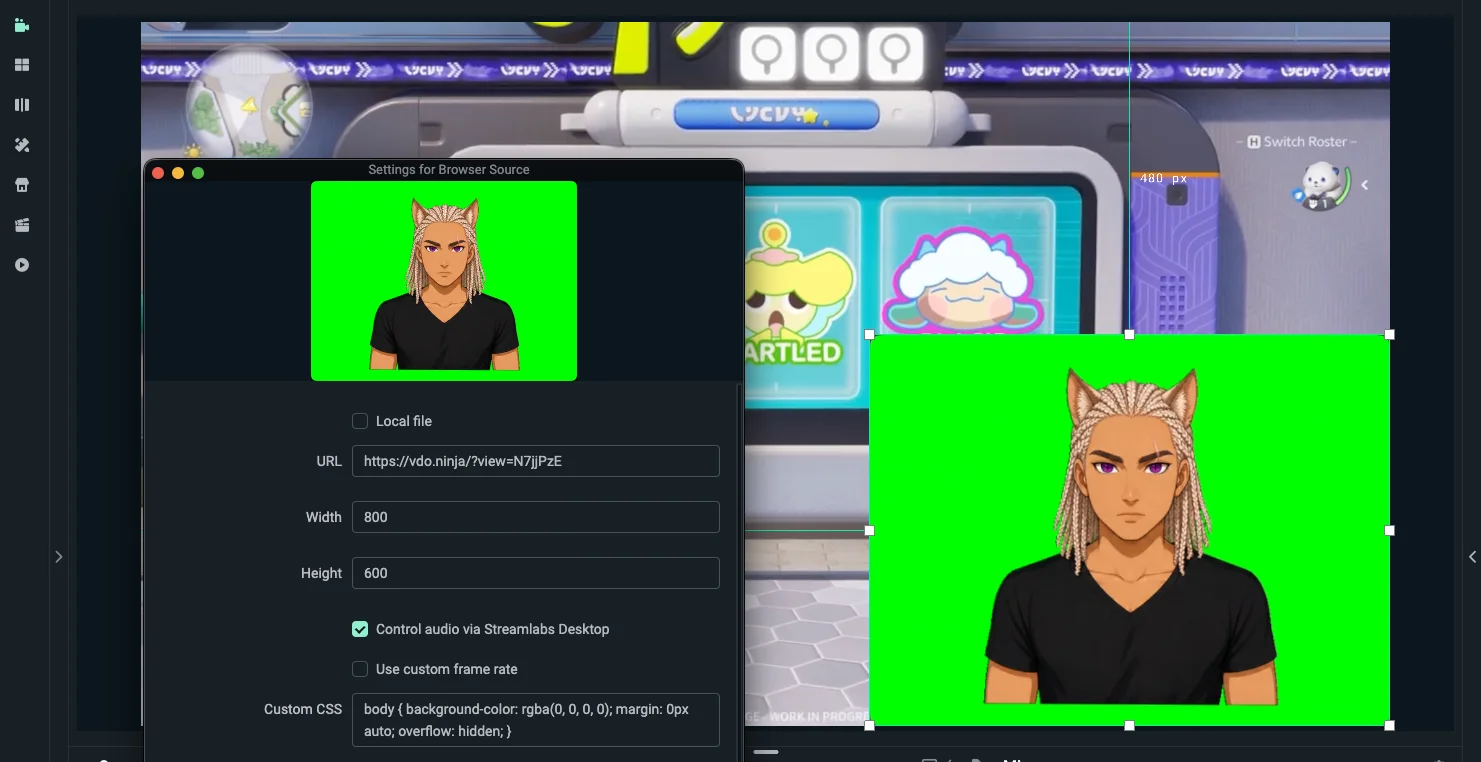
In the same scene, add a Browser Source and paste the view link the guest sent you. It will appear as a rectangle with your collaborator's avatar on a green background. The green is expected at this stage.
- 03
Chroma key the green away
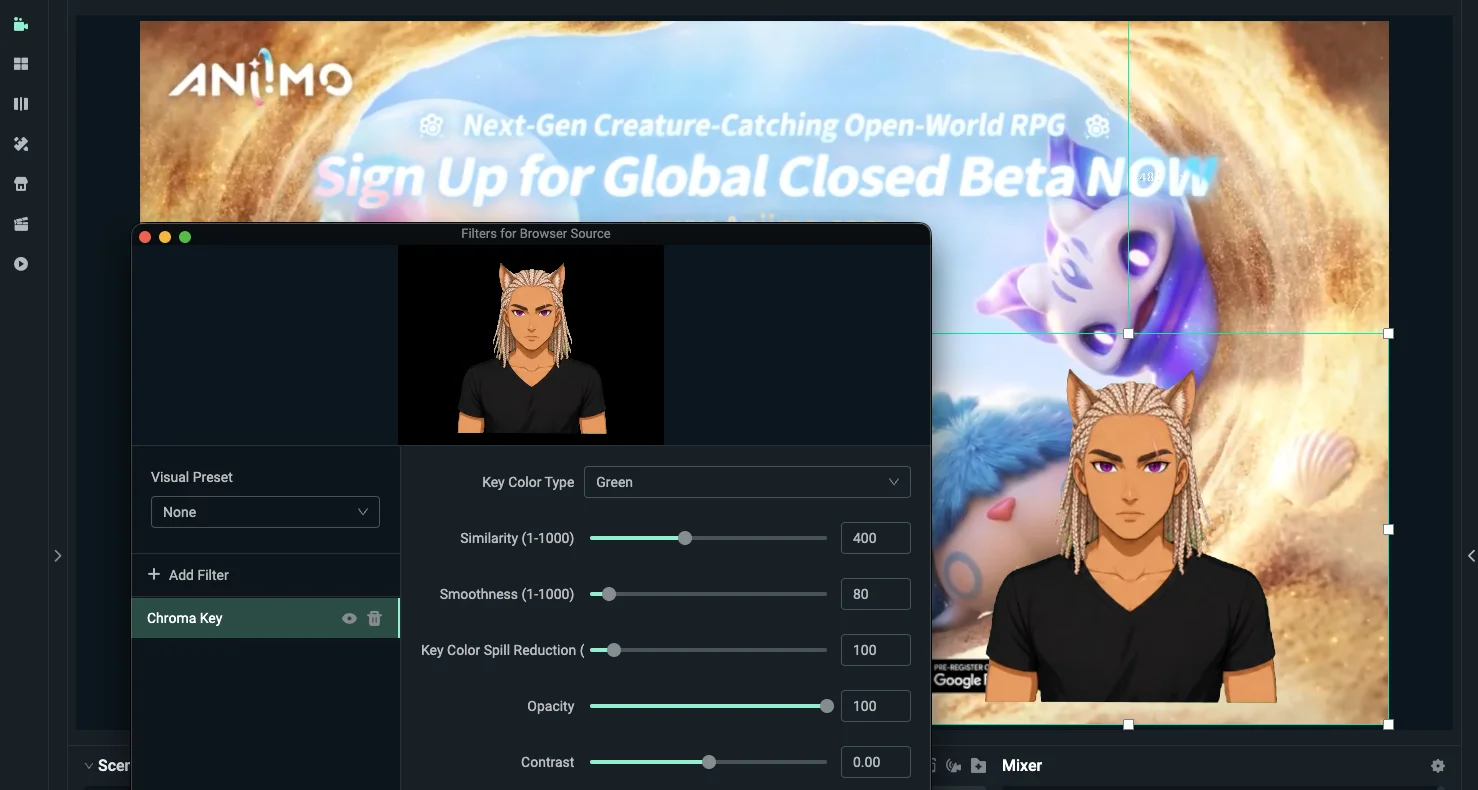
Add a Chroma Key filter to that Browser Source and set it to green. The background drops out and you are left with the avatar. This step is not optional — without it your guest streams inside a green box.
Green, not transparent
For a normal solo setup, a transparent background is the easier answer and it is what the rest of this site recommends. A Window Capture reads the window directly, alpha channel included, so the avatar arrives in OBS already cut out.
A screen share is not a window capture. VDO.Ninja is sending the host a video of the guest's window, and video has no alpha channel. There is nowhere in the format for "this pixel is empty" to be recorded. So a transparent overlay does not arrive transparent — it arrives as whatever the guest's desktop happened to be painting behind it, which is usually their wallpaper or a browser.
Pure green solves it because green is something the host can find and remove. The guest sends a picture with a known, uniform background, and a Chroma Key filter on the host's Browser Source takes it out. The transparency is reconstructed at the far end rather than transmitted.
This is why the two settings have to agree. If the guest renders transparent, there is nothing consistent for the host to key. If the guest renders green and the host adds no filter, the guest streams inside a green rectangle. Both halves or neither.
Browser Source settings
What worked in testing. The size is a starting point rather than a rule — match it to the space the guest occupies in your scene.
Width 800, height 600.
Chroma Key, set to green.
Custom CSS, into the box of that name:
body { background-color: rgba(0, 0, 0, 0); margin: 0px auto; overflow: hidden; }The CSS does not remove the green
These are two fixes for two different problems and you need both. The custom CSS makes the page around the video transparent, so the Browser Source has no white margin sitting behind your scene. The chroma key removes the green inside the video, which is the avatar's background. Applying the CSS and expecting the green to go is the most common way this looks broken when it is one filter away from working.
What you should end up with
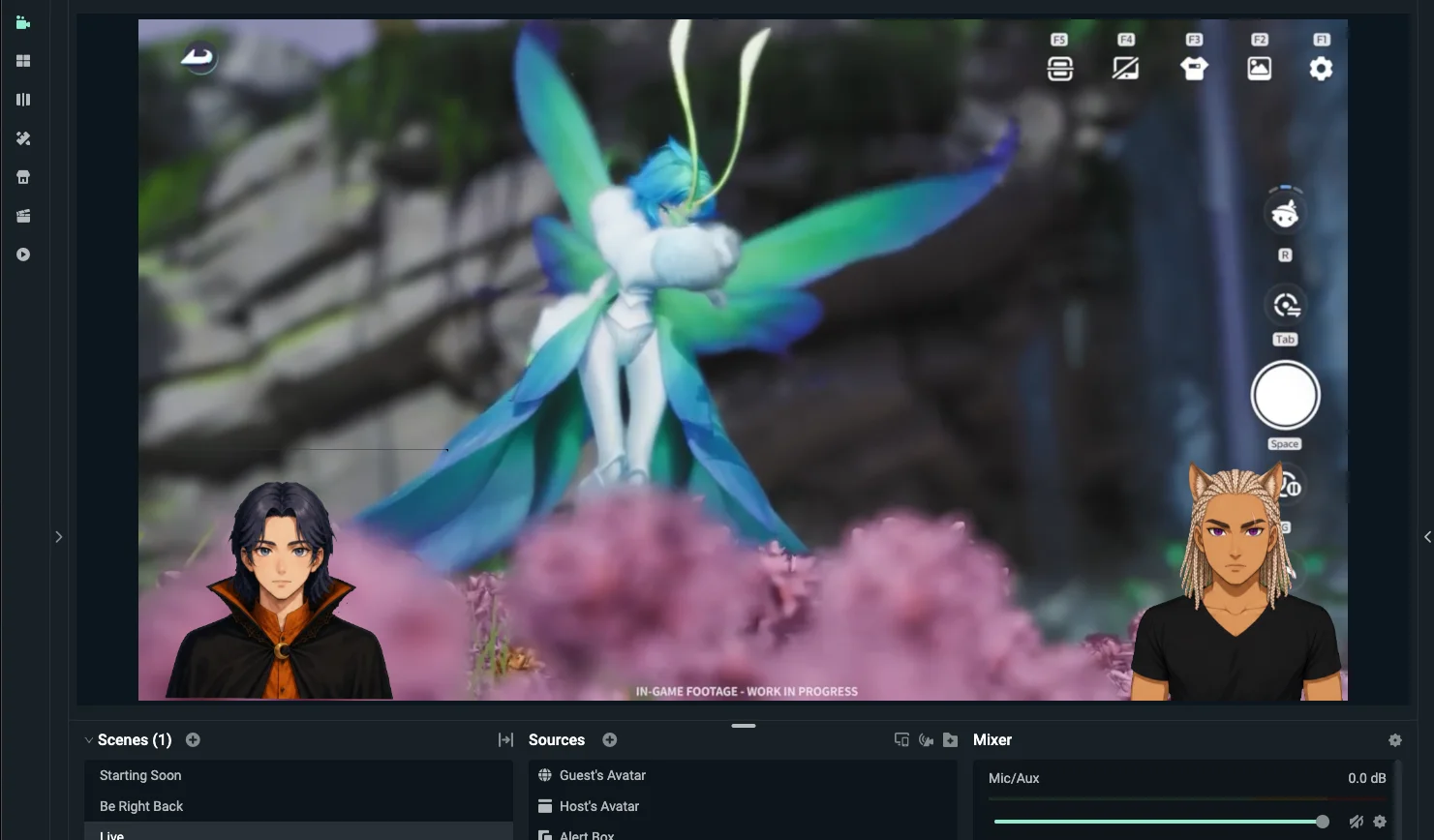
Two avatars in one scene, each driven by a different person on a different machine, and one of them has no idea what OBS looks like.
What we have not tested
This has been run with both ends on one machine. It has not been run across two networks with Discord audio going alongside it, and that is the case that actually matters.
The reason to care is that the avatar and the voice take different paths. The picture travels over WebRTC through VDO.Ninja; the voice goes through Discord separately. Two independent paths can arrive at different times, so the guest's mouth and the guest's words may not line up. Whether they drift, and by how much, we have not measured — so this page does not claim a number.
Do a dry run before a stream you care about. Get both ends connected, record a couple of minutes, and watch it back. If there is drift you will see it immediately on the recording, and it is far cheaper to find then than live.
Either of you can be the guest.
GetGuise is free to download, runs on Windows, and renders to a window — which is all the guest side of this needs.